Product tour
A guided look at BridgeCase, one workflow at a time.
This is a self-serve walkthrough of the workflows program teams run every day — shown entirely with clearly labeled synthetic data, never real youth or family records. When you want to go deeper, a personalized demo walks through your own programs, roles, and reporting.
Every screen below is populated with fictional people, programs, and numbers. What you'll see reflects BridgeCase's current product scope: staff make selection and matching decisions — no AI chooses participants or mentors — and no third-party integrations are implied.
Stop 1 of 10
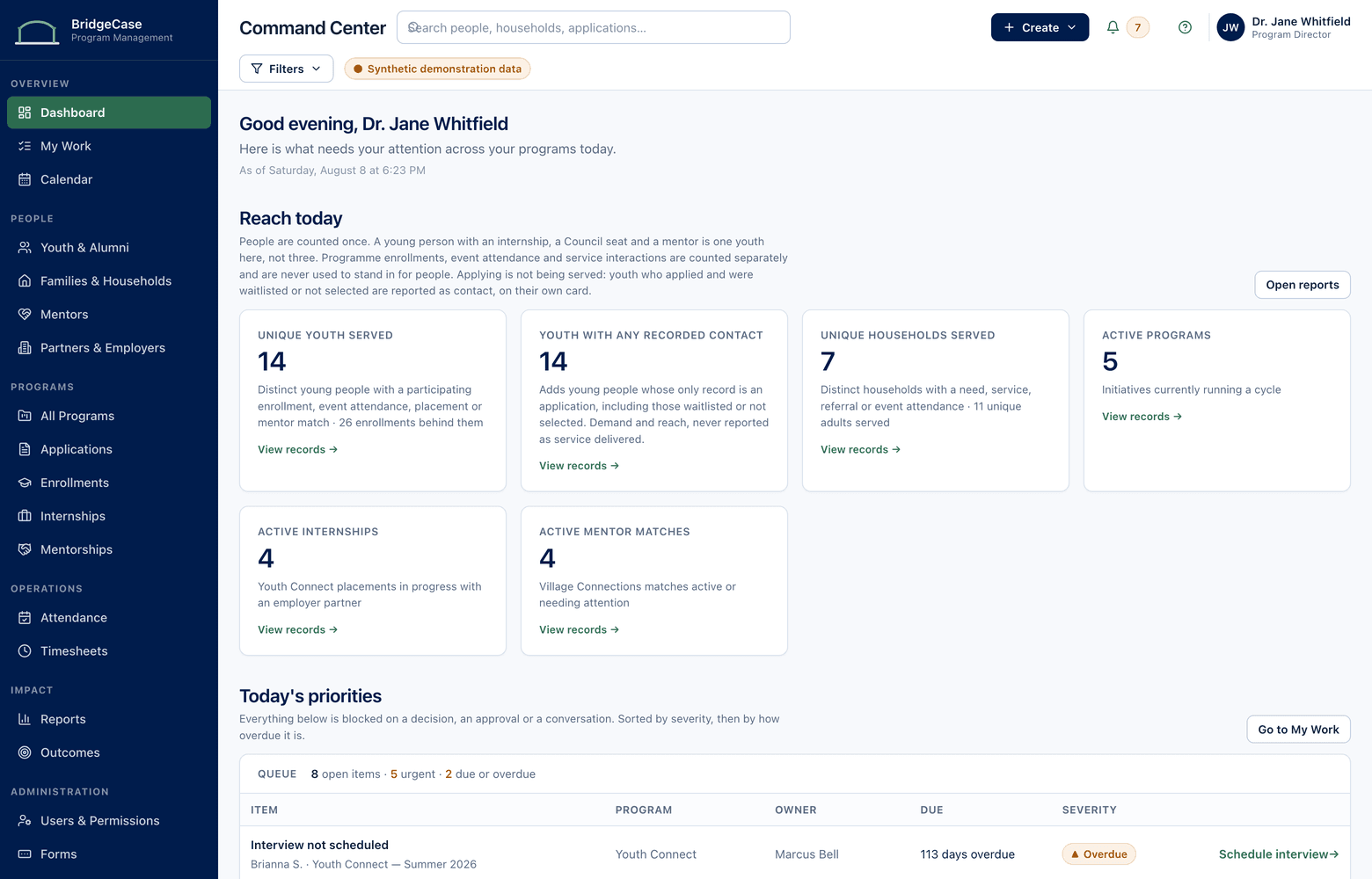
Program Command Center
A program coordinator starts the morning here: today's queue across every program, in one place. Internship applications to review, missing consent forms to chase, timesheets waiting for approval, a referral check-in — each item links straight to the record it belongs to.
What to notice
- One queue spans mentoring, internships, and referrals — no per-program logins.
- The counts at the top are live from the same records staff work in.
- Every queue item is a task on a real record, not a sticky note.
Stop 2 of 10
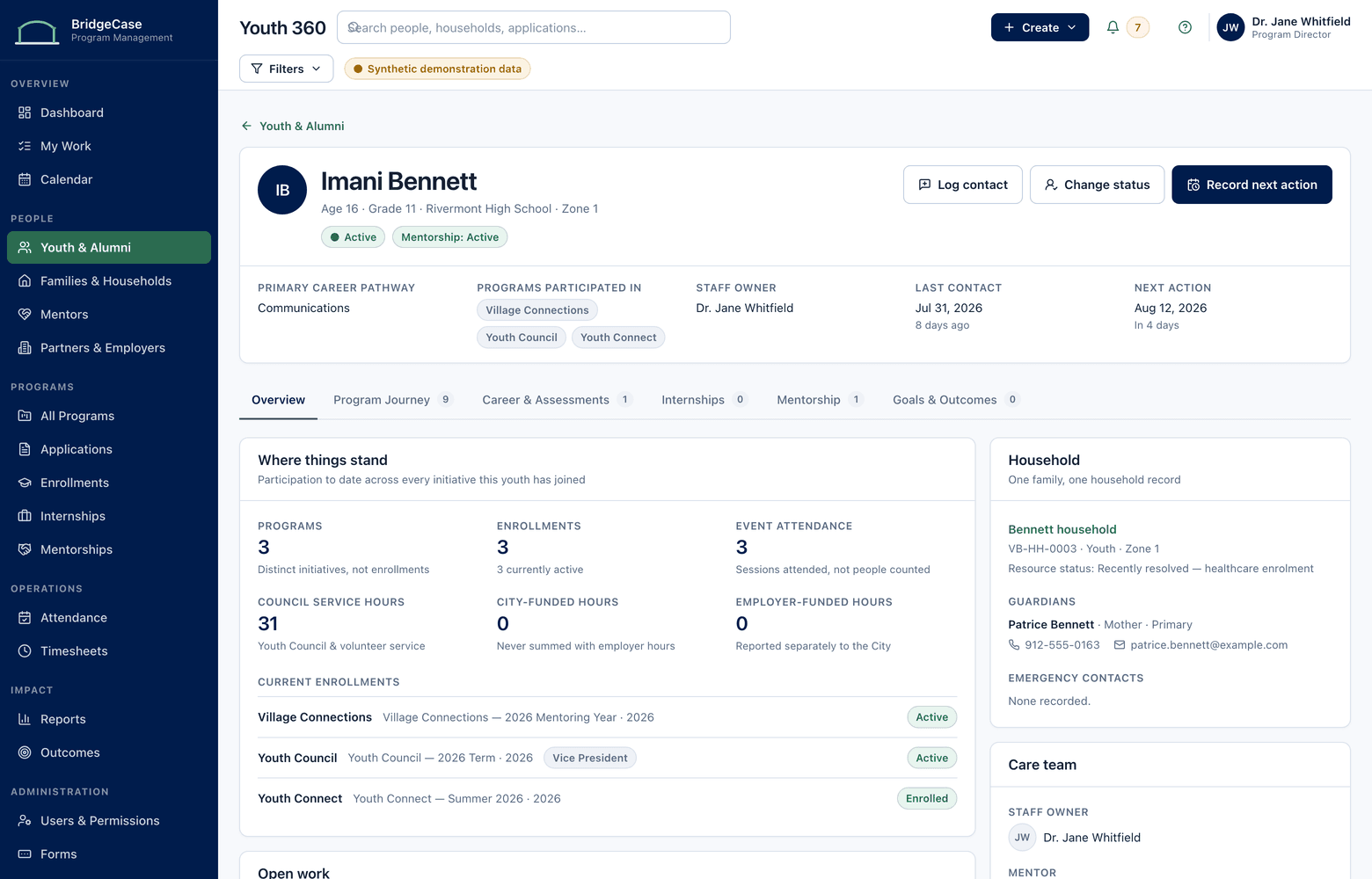
Participant 360
Open Jordan Ellis and the whole history is there: a completed Youth Leadership Council year, an active mentoring match, an internship with 96 approved hours, and a family referral. One permanent record across programs and years — not four module entries to reconcile.
What to notice
- Programs from different years sit on the same profile — nothing was re-entered.
- Household context — guardian and sibling — is one click away.
- Statuses come from the modules themselves, so the profile is never stale.
Stop 3 of 10
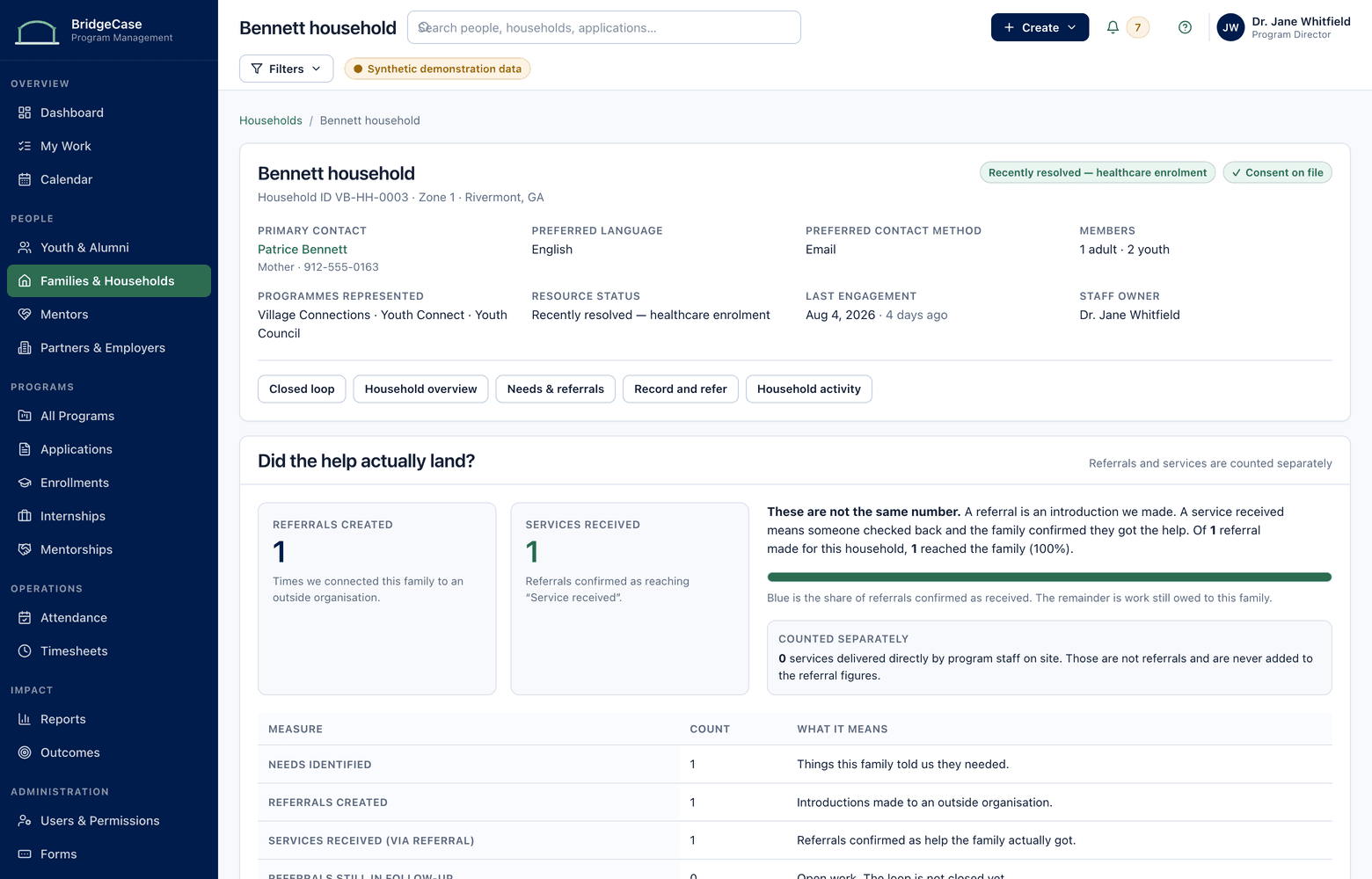
Household connections
Households are records, not a text field. The Ellis household connects guardian Tanya, Jordan, and his sister Maya — so when a family-level need like transportation comes up, staff record it once against the household instead of duplicating it on each child.
What to notice
- Guardians and siblings are linked people, not retyped names.
- The transit need lives at the household level, where it belongs.
- Unique-household counts in reporting come straight from records like this one.
Stop 4 of 10
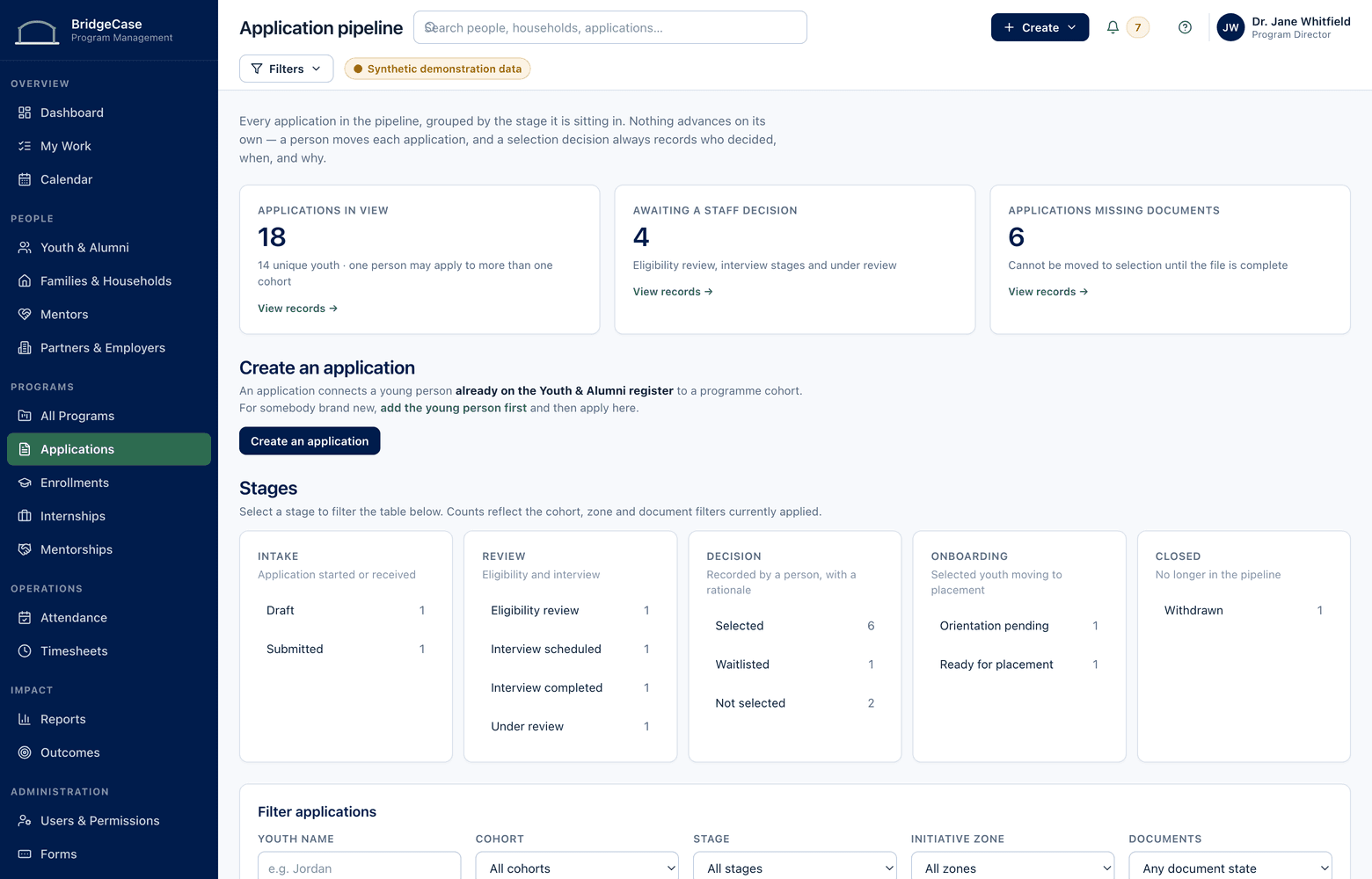
Programs, intake & enrollment
Summer Cohort B is mid-intake. Applications, interviews, and enrollment confirmations move through stages the organization configured, and the coordinator can see exactly where each of the 48 applicants stands — without a side spreadsheet.
What to notice
- Stages match your intake process; they are configured, not hard-coded.
- Each applicant is already a person record — enrolling never means re-entering.
- Bottlenecks are visible while there is still time to fix them.
Stop 5 of 10
Mentoring
Here is the match between mentor D. Carter and Jordan Ellis: background check cleared before the first session, 14 sessions logged, and a portfolio goal on track. Screening, session notes, and goals live on the match — visible to exactly the roles that should see them.
What to notice
- Clearances are tracked with dates, so expirations surface before they lapse.
- Session logs and goals accumulate on the same record the 360 showed.
- Staff choose the matches; the software keeps the record straight — no AI matching.
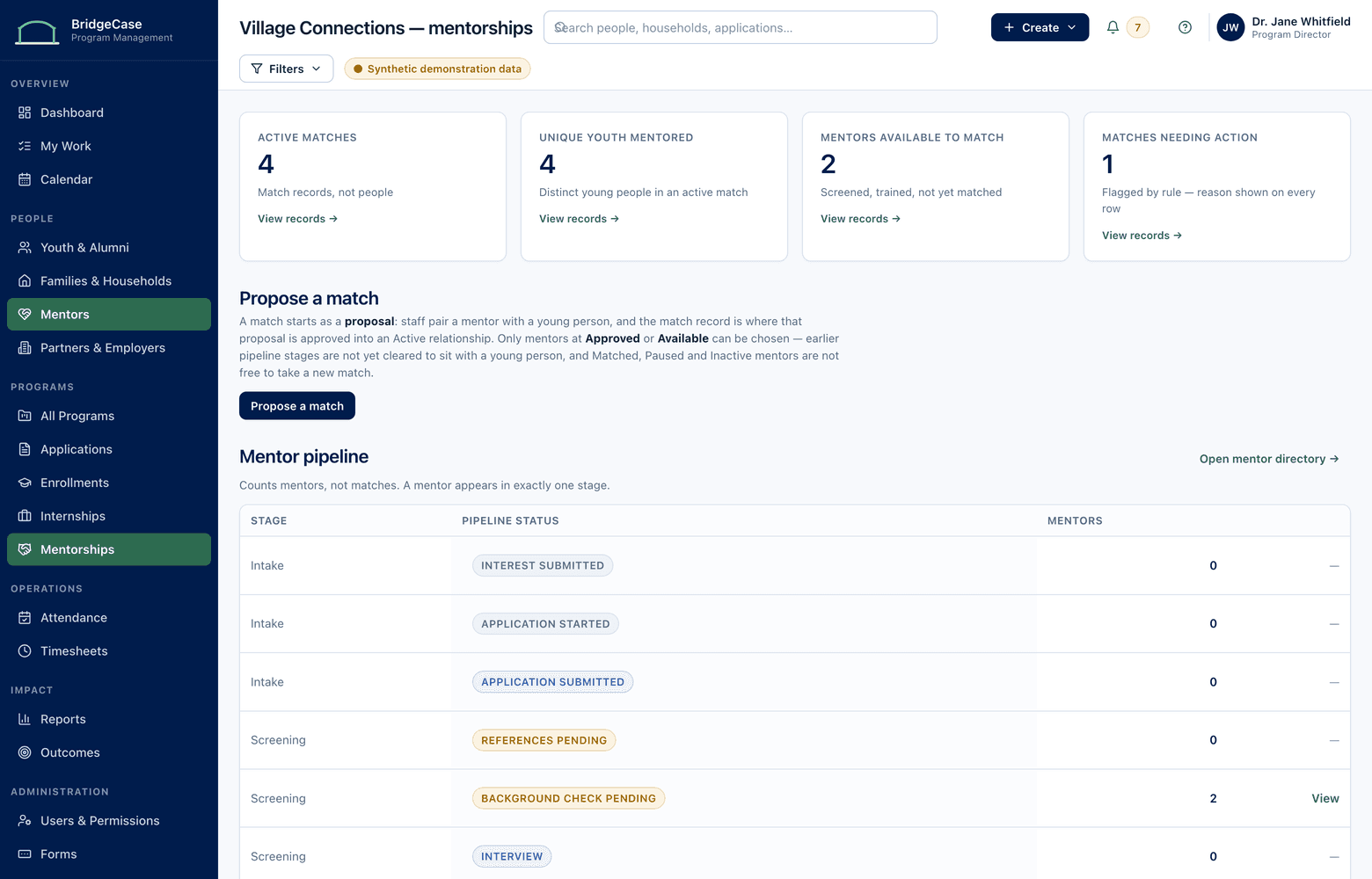
Stop 6 of 10
Workforce & internships
Jordan's placement at Riverside Design Co. is in week six, and his 18.5-hour timesheet is waiting on approval — the same item that surfaced in the command center queue. Once a supervisor approves it, the hours post to his record and to the program's totals.
What to notice
- Timesheets route between participant, employer, and staff — no paper chase.
- Approved hours feed the same record that reporting reads later.
- Site visits and evaluations sit on the placement, not in someone's inbox.
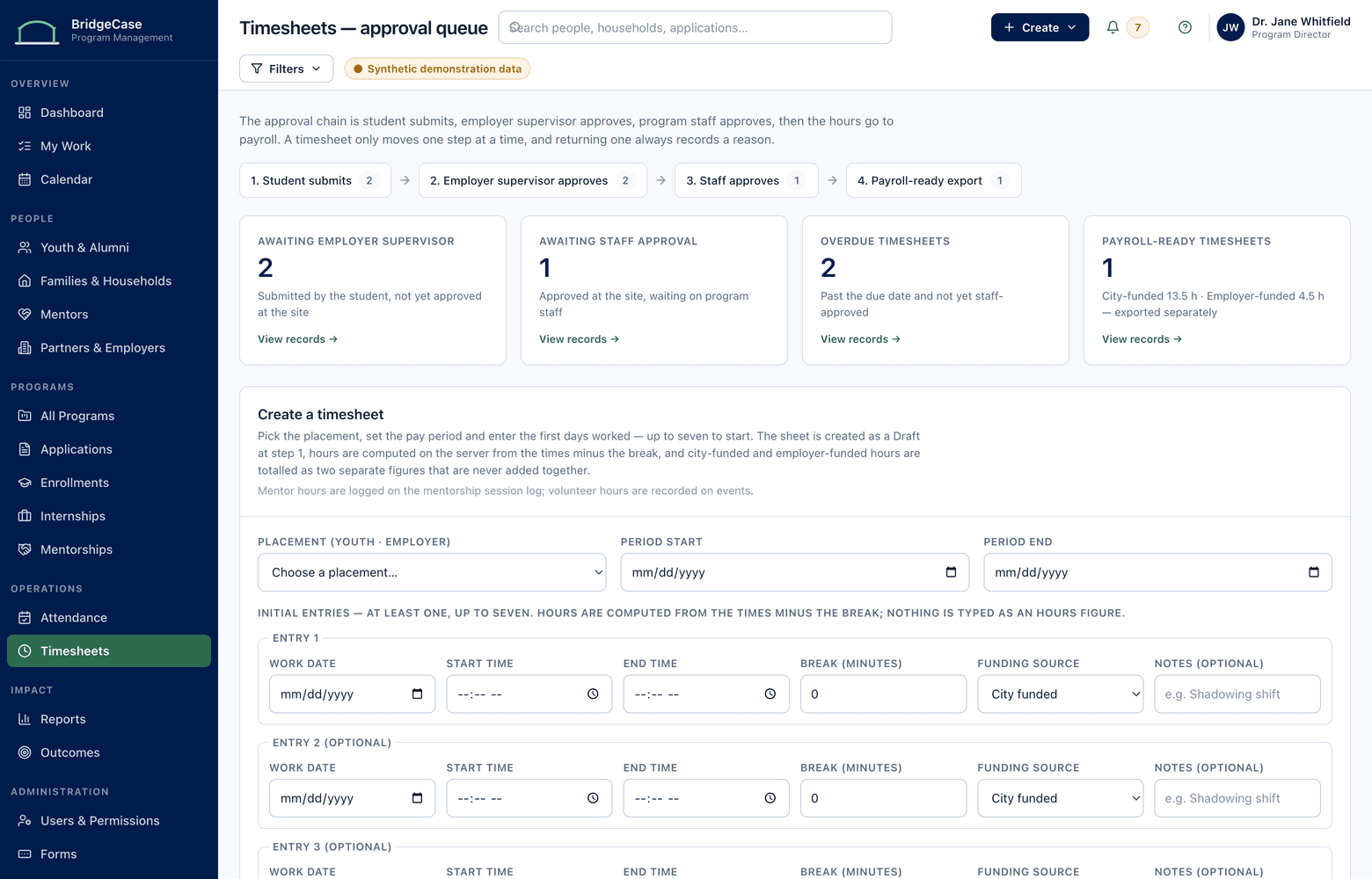
Stop 7 of 10
Family resources & closed-loop referrals
The transportation need from the household stop closes its loop here: identified June 2, referred to a partner June 4, service received. Staff can see not just that a referral was sent, but that the family actually got the help.
What to notice
- Every referral carries an outcome, not just a send date.
- The need, the referral, and the result all live on the Ellis household record.
- Referral completion rates in reporting are computed from loops like this one.
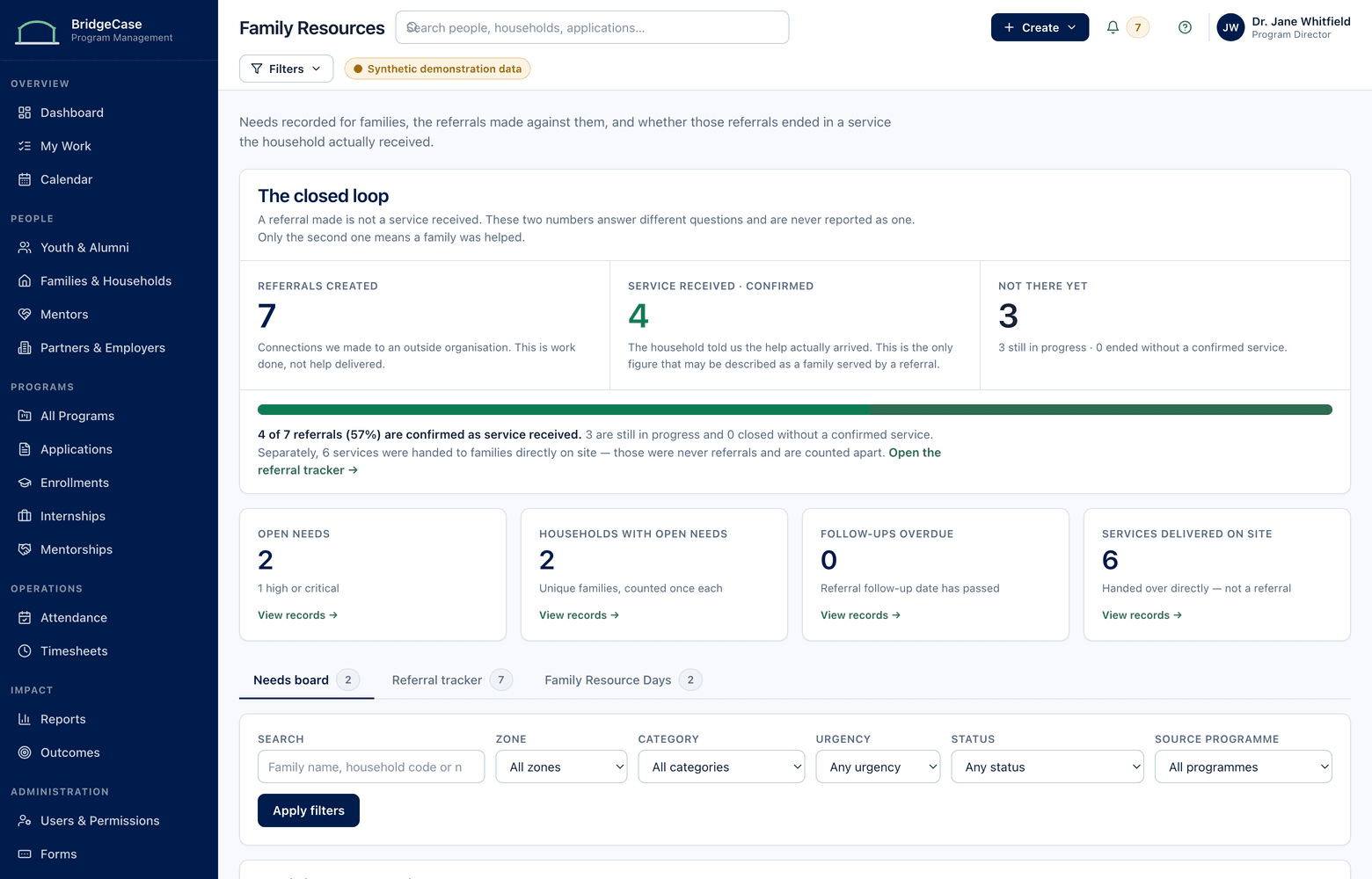
Stop 8 of 10
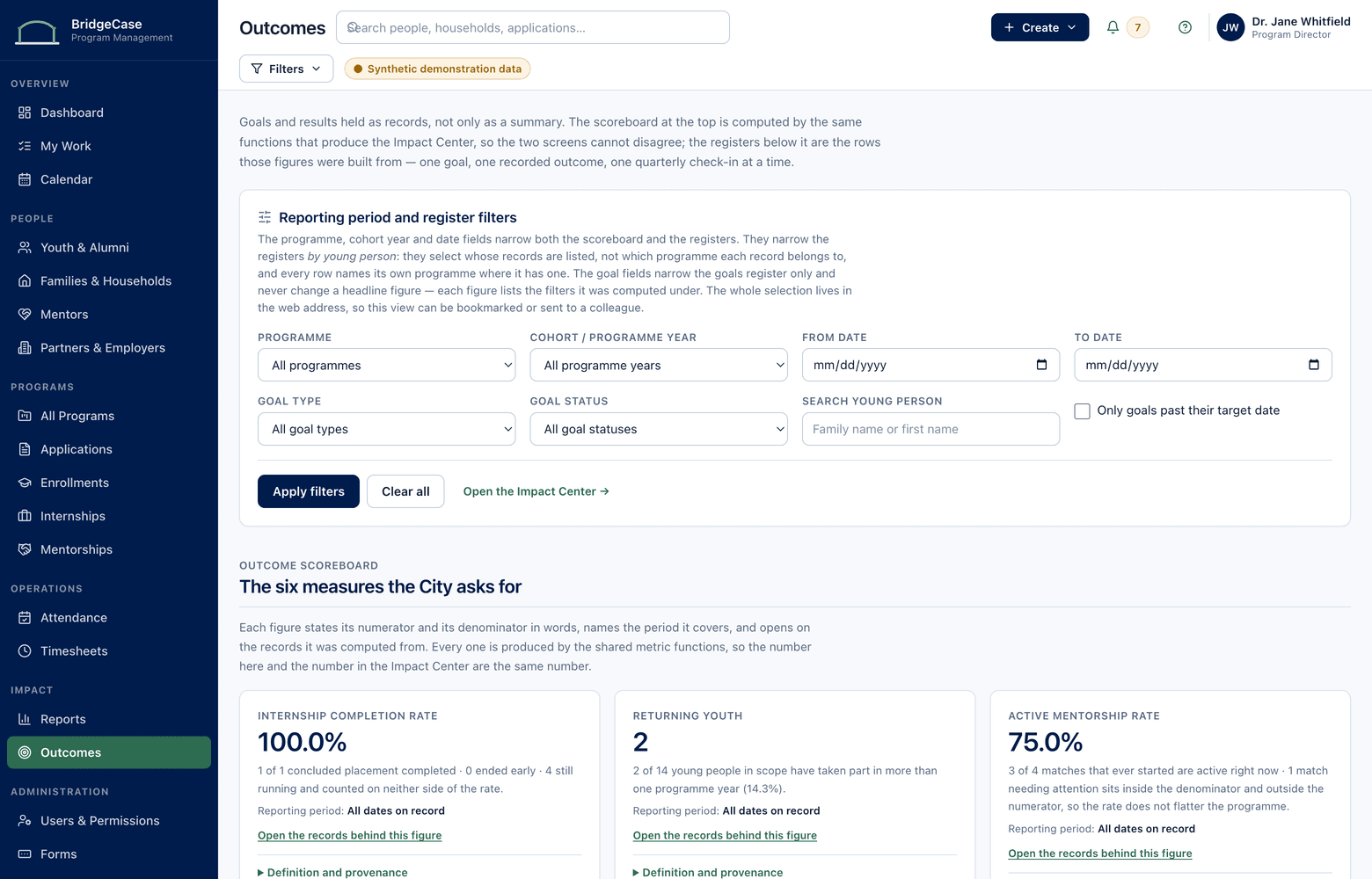
Outcomes & reporting
Everything the tour has touched lands here without a data call: Jordan's enrollments, his approved hours, and the household's completed referral are already in the quarter's numbers. Unique youth served means each person counted once — across every program.
What to notice
- Reports are computed from the records in the earlier stops, not from exports.
- Unique people and unique households are distinct, defined counts.
- The referral completion figure comes from closed loops like the Ellis one.
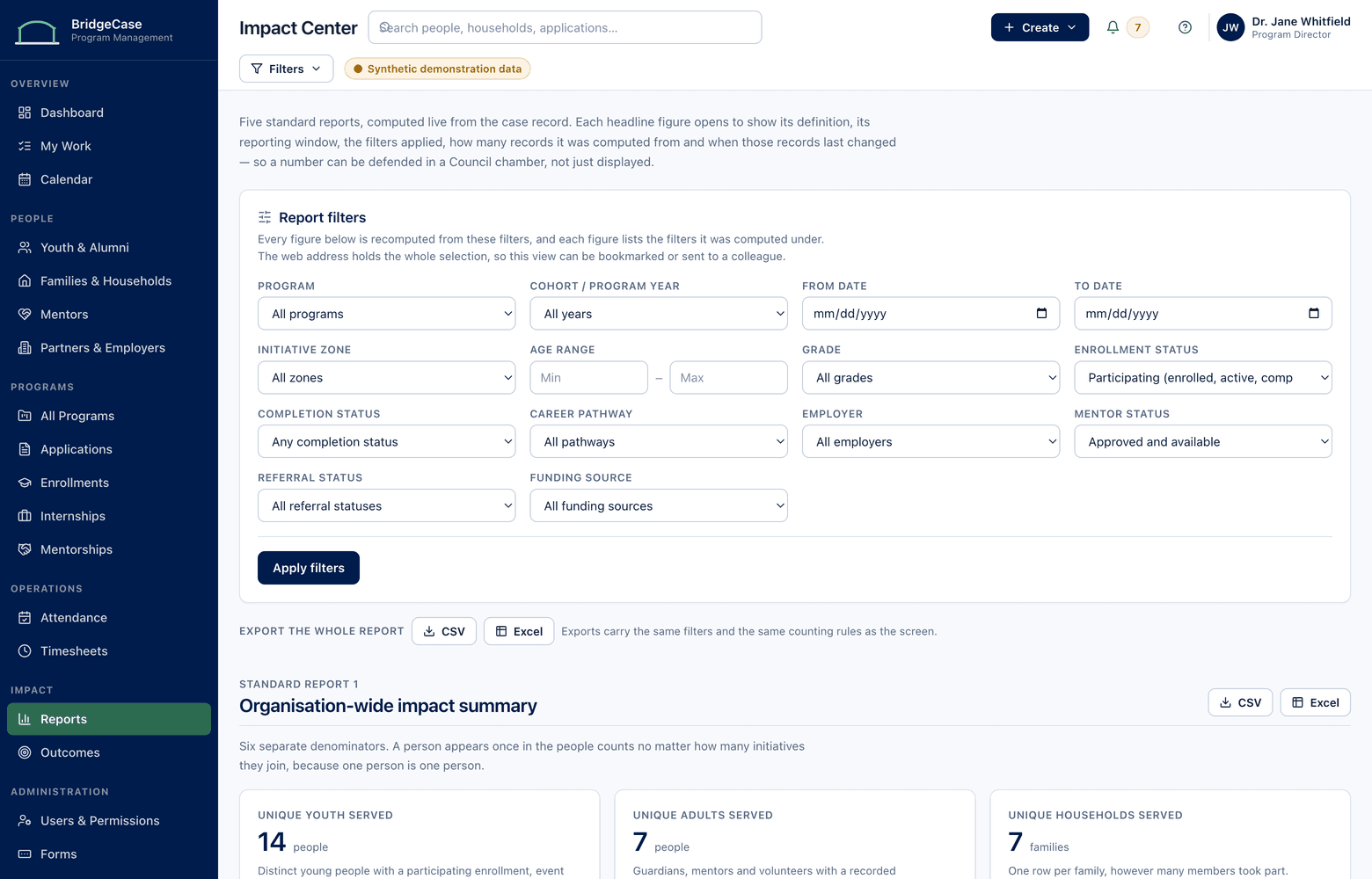
Stop 9 of 10
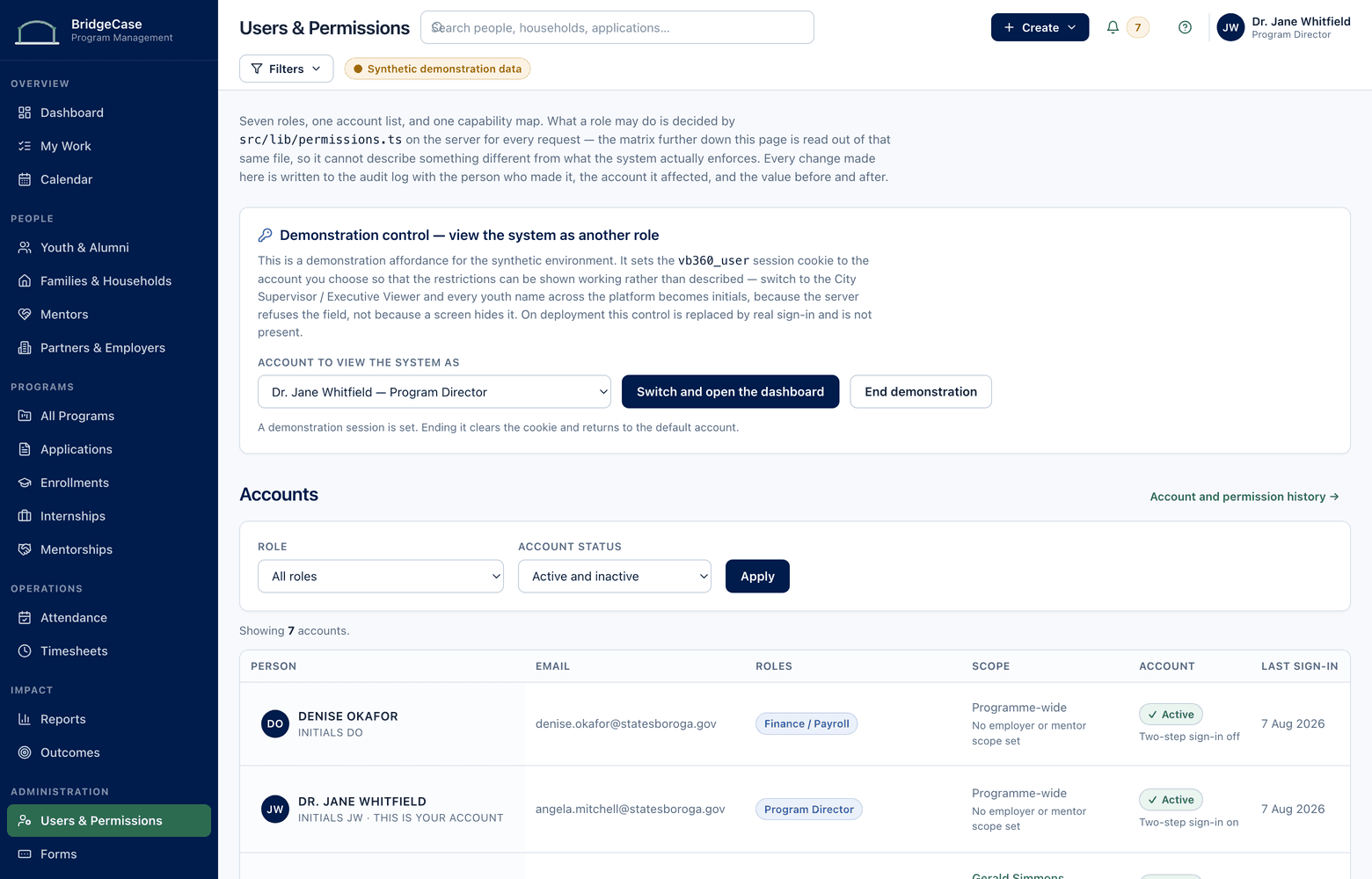
Security & permissions
A program coordinator sees program records in full, but case notes marked restricted stay hidden, and every export is logged. Roles decide who can see, edit, and export what — the same governance across every module in this tour.
What to notice
- Restricted notes are invisible to roles without access — not merely discouraged.
- Audit history records who viewed and exported which records.
- Permissions follow the role across modules, not one module at a time.
Stop 10 of 10
From this tour to your own workflows.
Every organization runs these workflows differently, so implementation starts with discovery: mapping your programs, forms, statuses, and reporting obligations. Then configuration to match them, testing and training with your team, and launch — once your staff have already practiced on the workflows they will actually use.
See these workflows with your own programs in mind.
A personalized demo follows the same path as this tour — with your programs, your roles, and your reporting requirements in the picture.
No youth or family data is required to request a demo.